Health Data Survey
The health data survey function in the STRONG 360 & BEAUTIFUL 360 mobile app helps the virtual assistant understand users better and recommend suitable exercises based on personal information and specific health conditions. Here are the specific steps:
Step 1: Log in to the STRONG 360 & BEAUTIFUL 360 app
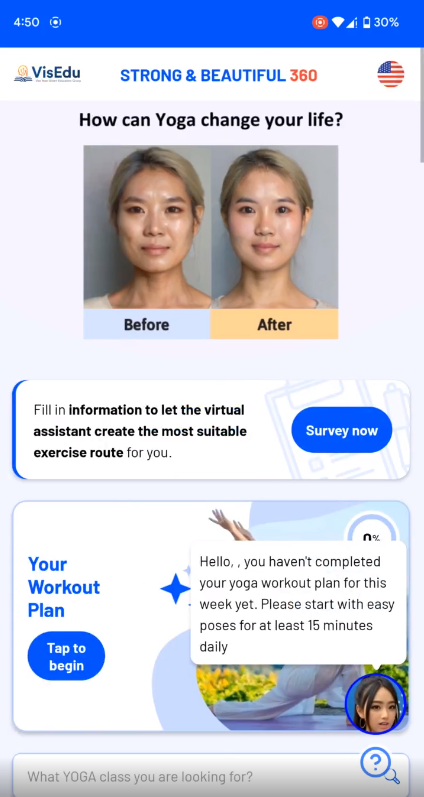
Step 2: Confirm to take the health survey: Survey now
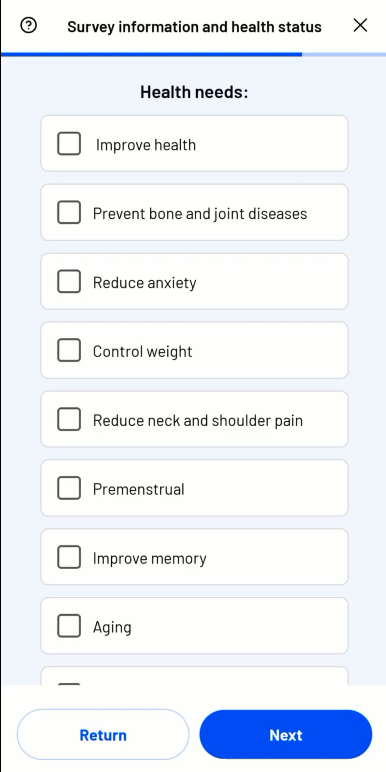
Step 3: Fill out the health information in the survey
Step 4: The virtual assistant is creating your workout plan
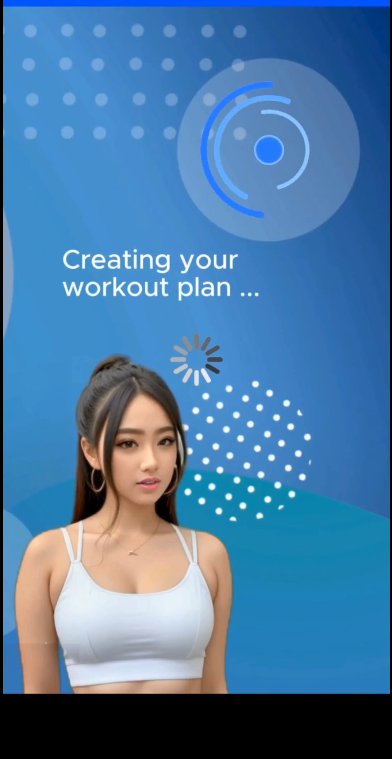
Step 5: View the workout route created by the virtual assistant
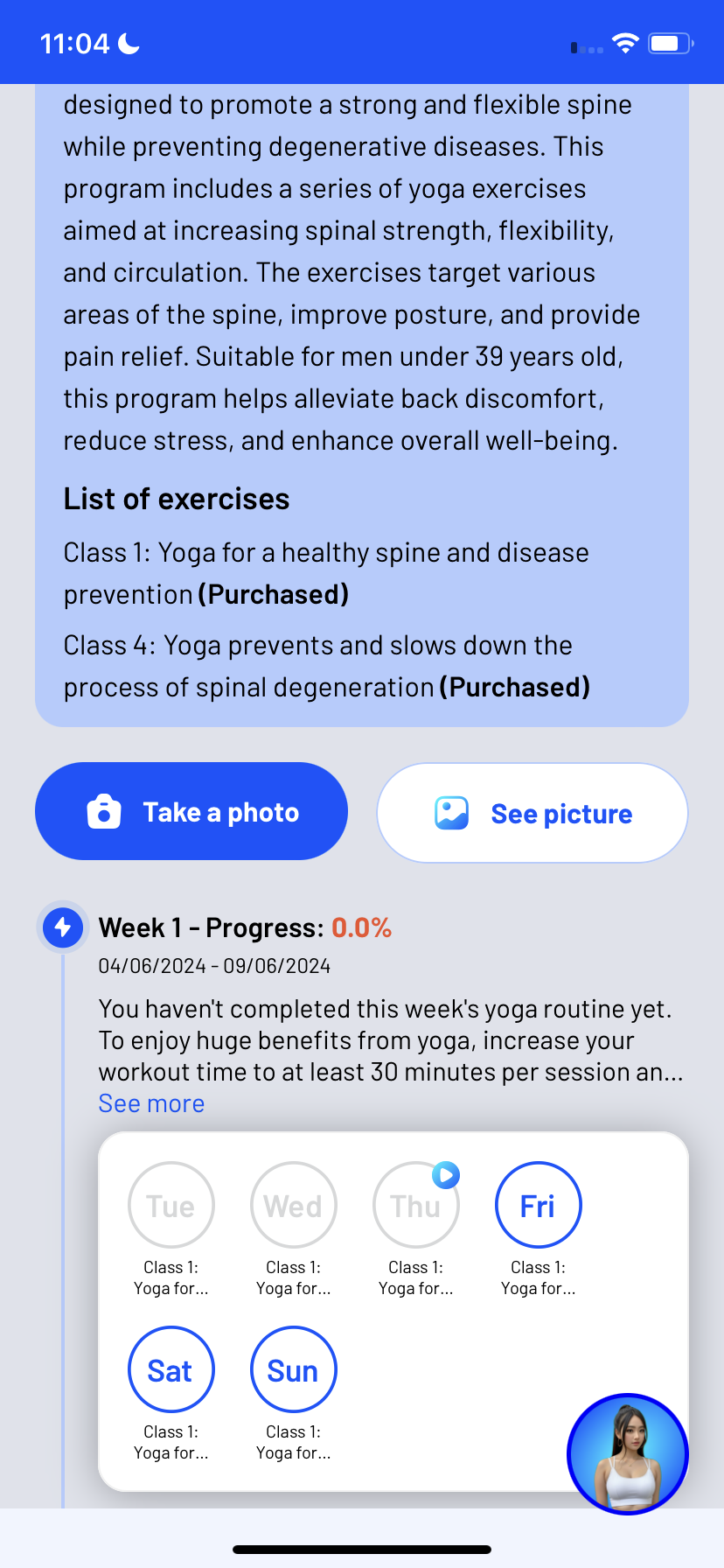
Practice Yoga
The recommended training plan viewing function with the virtual assistant on the STRONG 360 & BEAUTIFUL 360 mobile app helps users easily track and execute personalized workout plans. The virtual assistant will create a detailed plan with exercises, duration, and intensity based on personal information and fitness goals. Users can track their workout progress and optimize their training experience on mobile. Here are the specific steps:
Step 1: Log in to the app and click the “Tap to begin” button in the Workout Plan.
Step 2: View your personalized training plan.
The software will track daily exercises and display the weekly plan, the day of the week, exercises, and completion rate.
The plan displays exercises, including those unlocked (free or purchased) and those not yet unlocked.
If the exercise is already unlocked, proceed to Step 6.
Step 3: Try the free personal plan.
The plan includes some free exercises for users to experience without purchasing.
Step 4: Click “Buy packages” on the exercise interface to unlock the plan.
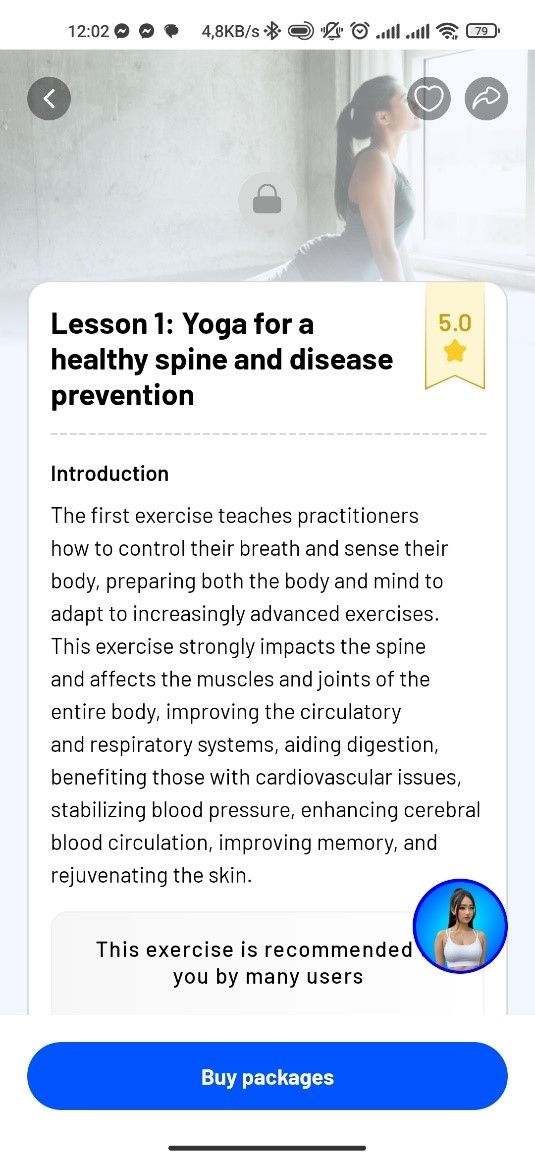
Step 5: Return to the app’s training plan page.
5.1: Check the status of the exercise. If it is unlocked (displaying an unlocked icon), proceed to Step 6.
5.2: If the exercise is not unlocked, refresh the app by pulling down from the middle of the screen to reload the data.
5.3: If still unsuccessful, wait about 5 minutes and repeat Step 5.2.
5.4: If after waiting and performing Step 5.3 it still does not work, contact email: info@visedu.vn for technical support.
Step 6: Enter the exercise in the plan and see the AI virtual assistant’s training recommendations.
The AI virtual assistant provides advice on exercises, workout duration, diet plans, and other tips.
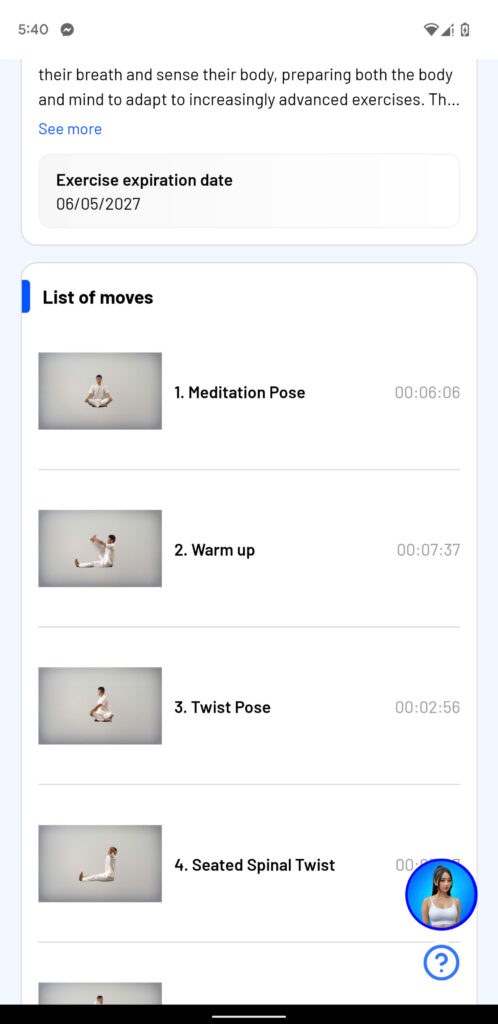
Step 7: Prepare for Training
Option 1: To practice with non-interactive course videos, click the “Regular Practice” button and rotate your phone horizontally.
Option 2: To practice with the interactive virtual assistant, click the “Practice with AI Assistant” button and proceed to Step 9.
(The Yoga practice function with the virtual assistant on the STRONG 360 & BEAUTIFUL 360 app is a modern feature using AI technology to support users without the need for an instructor. Note: Not all exercises have the “Practice with AI Assistant” function. Exercises that have this function will display the “Practice with AI Assistant” button at the bottom of the screen next to the “Regular Practice” button.)
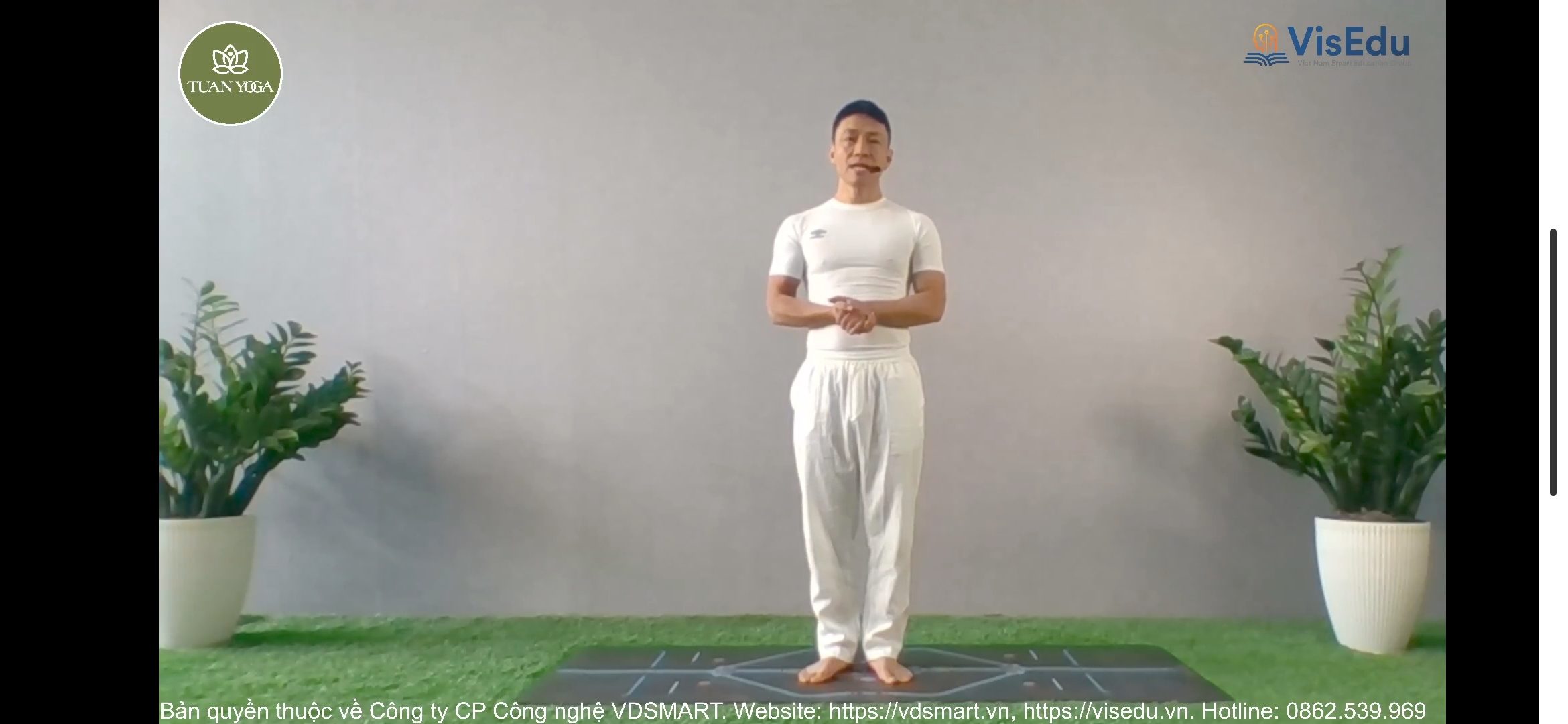
Step 8: Start Regular Practice
Click the “Regular Practice” button to practice with the course video.
Step 9: Start Practicing with the AI Virtual Assistant
Click the “Practice with AI Assistant” button and rotate your phone horizontally.
The AI virtual assistant will compare the user’s skeletal frame with the instructor’s, detect misalignments, and provide audio feedback.
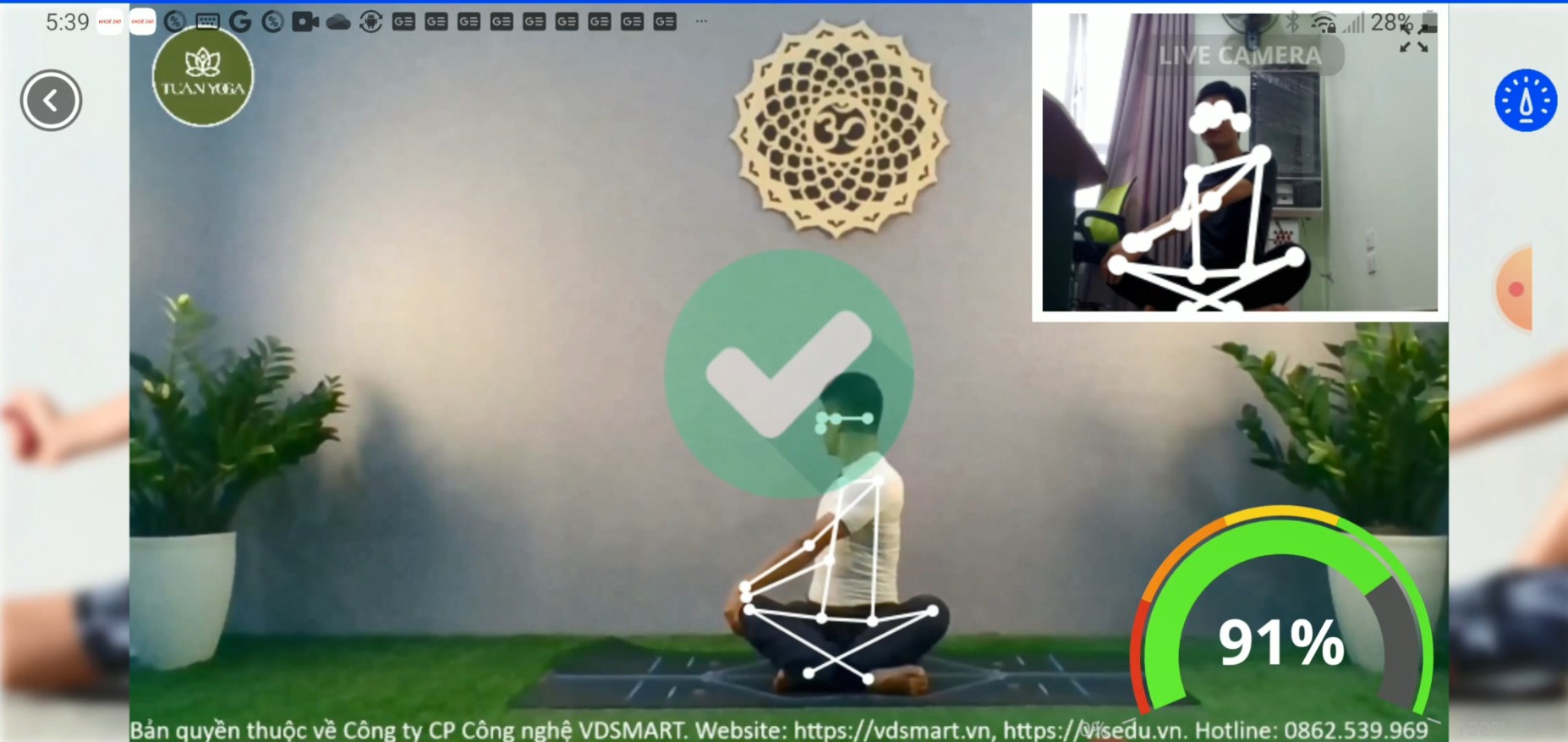
The screen includes the following components:
- The instructor’s video will be displayed in the large screen.
- The user’s image will be displayed in the small screen in the corner. The frame color will change according to the correct/incorrect state of the movements.
To start, place your phone horizontally about 2-3 meters away from you so that the phone’s camera can capture your entire body.
The software will give the following instruction: “Please stand or sit so that your body frame aligns with the instructor’s skeletal frame. When you are ready, the exercise will begin.”
When practicing correctly:
- The user’s skeletal frame in the large and small screens will be green or white. The border color will be green.
When practicing incorrectly:
- The user’s skeletal frame will appear red at the misaligned joints.
- There will be an audio reminder, e.g., if the user’s left leg position is incorrect, the software will prompt with: “Your left leg position is incorrect,” to help the user correct their left leg posture.
- The border around the user’s image will turn red and blink.
- The instructor’s video will pause until the user assumes the correct posture, at which point the video will resume.
Step 10: After the exercise session ends:
Receive a notification of the session results.
If you exit the session early, you will receive a reminder: “You have completed 50% of the exercise. Please try to complete the session to achieve your workout goal.”
Step 11: Review your personalized plan and progress
The progress tracking and improvement monitoring function on the STRONG 360 & BEAUTIFUL 360 mobile app is a crucial tool for helping users achieve their fitness goals. Users can track metrics and view charts showing their progress over time. This function provides motivation by displaying the level of improvement, helping users maintain their momentum and commitment to their personalized training schedule.
Chat with virtual assistant
The virtual assistant will support advising on yoga exercises suitable for your health condition and goals, answer health-related questions, provide detailed guidance on app usage, and address frequently asked questions (FAQs). With STRONG 360 & BEAUTIFUL 360’s virtual assistant, you will have a reliable companion in your journey to improving health and enhancing quality of life.
Step 1: Click on the virtual assistant icon at the bottom right corner of the screen.
Step 2: Choose to interact with the virtual assistant.
Option 1: Select “Chat now” to start a conversation with the virtual assistant and proceed to step 4.
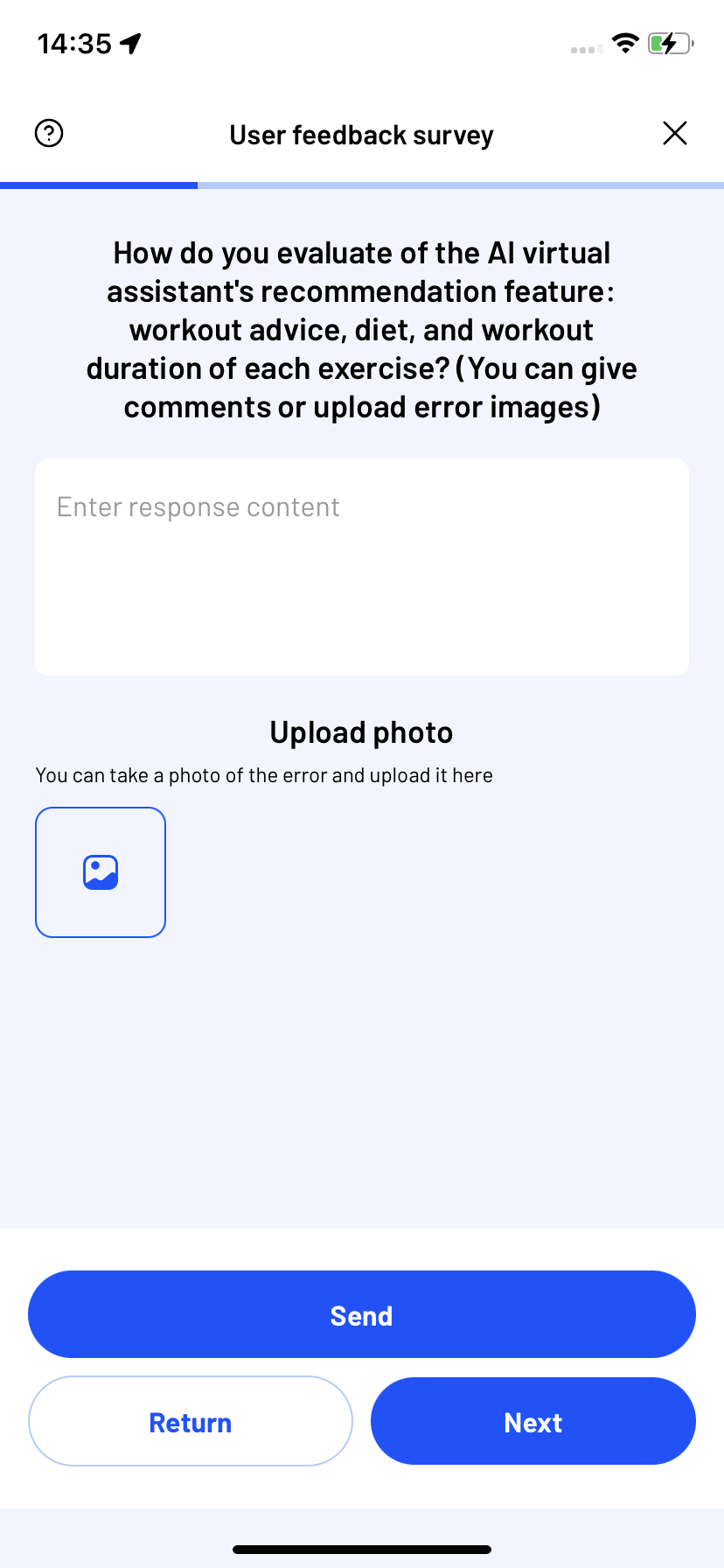
Option 2: Select “Report a bug” to provide feedback on app errors to the developers and proceed to step 3
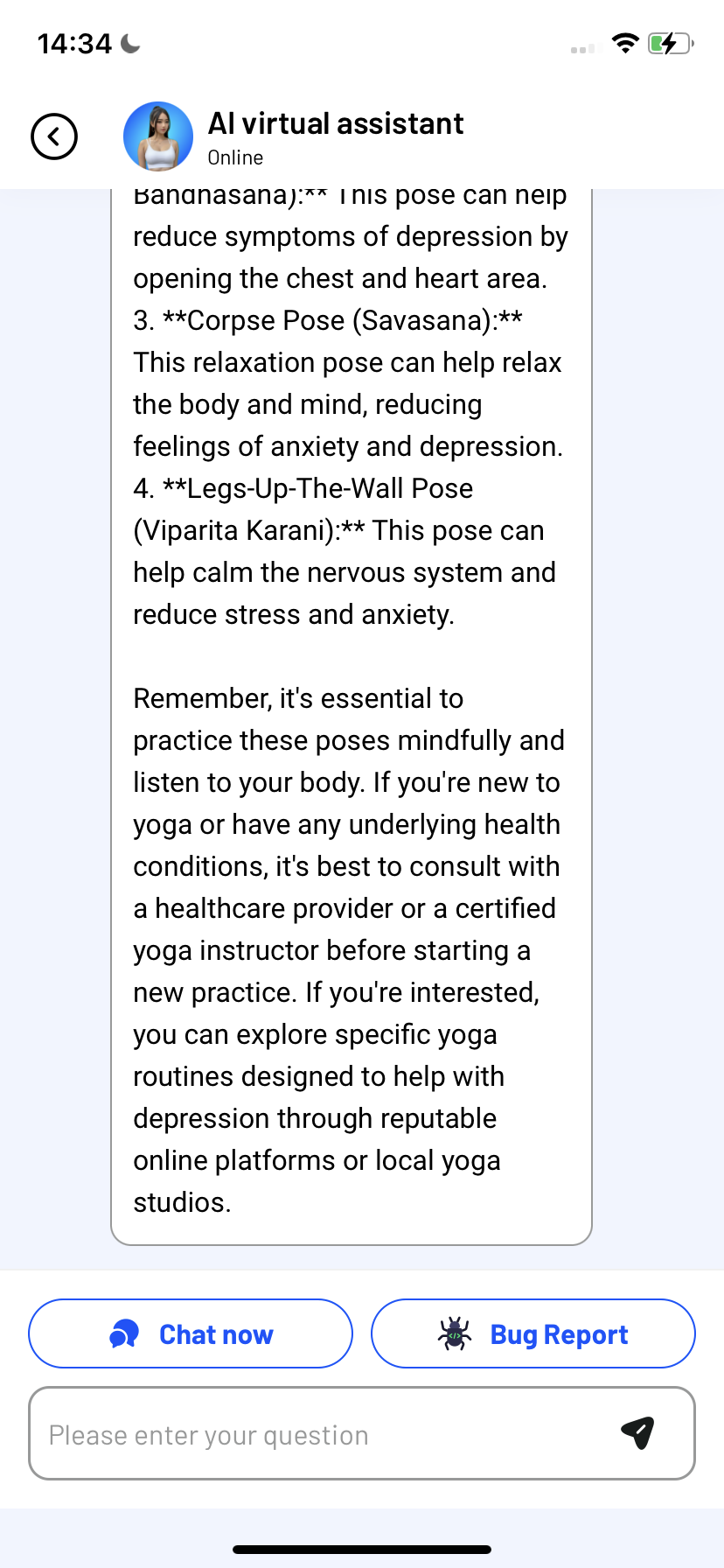
Step 3: Report issues to the developer.
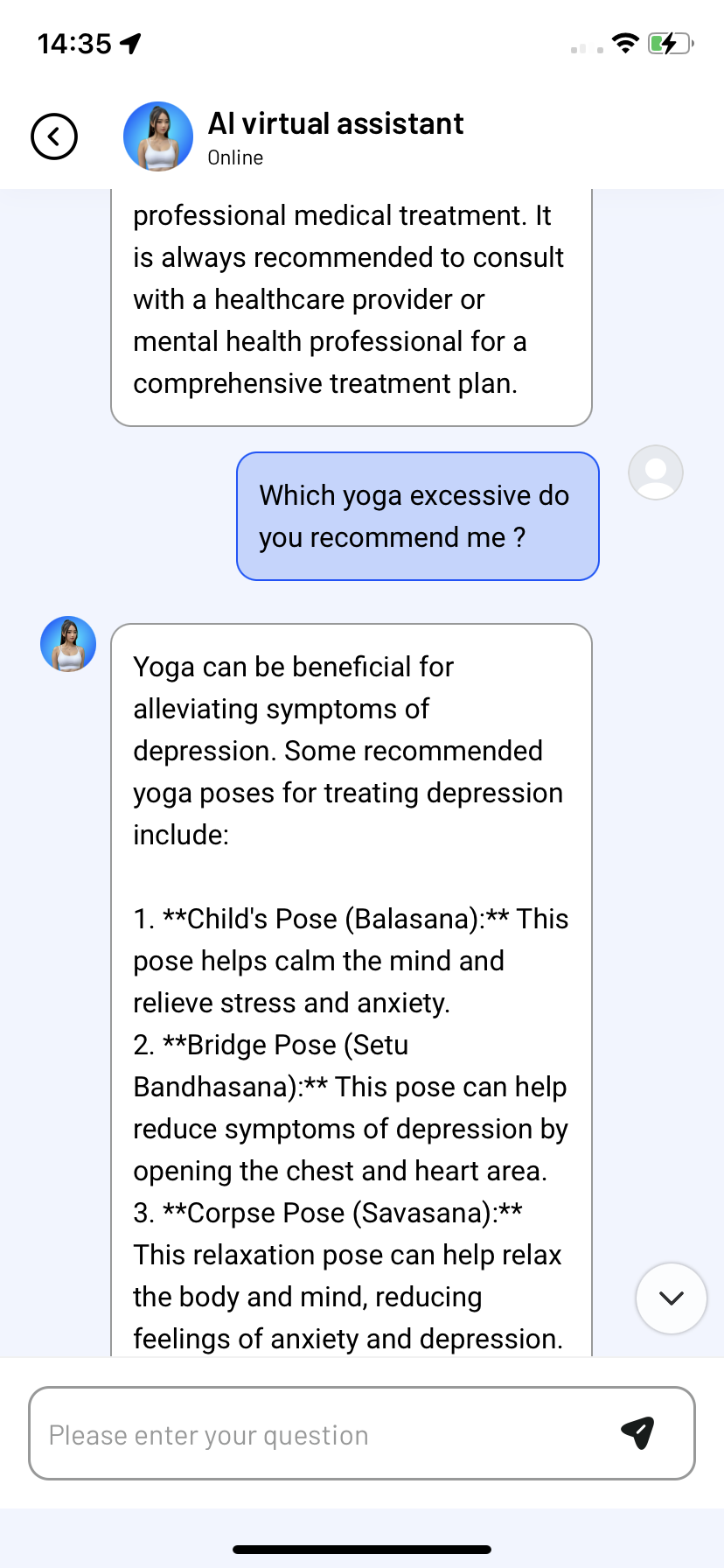
Step 4: Ask questions so the virtual assistant can recommend suitable yoga exercises based on your health condition and goals, answer health-related questions, provide detailed guidance on using the app, and respond to frequently asked questions (FAQ).
User Photo Saving Function for Comparison
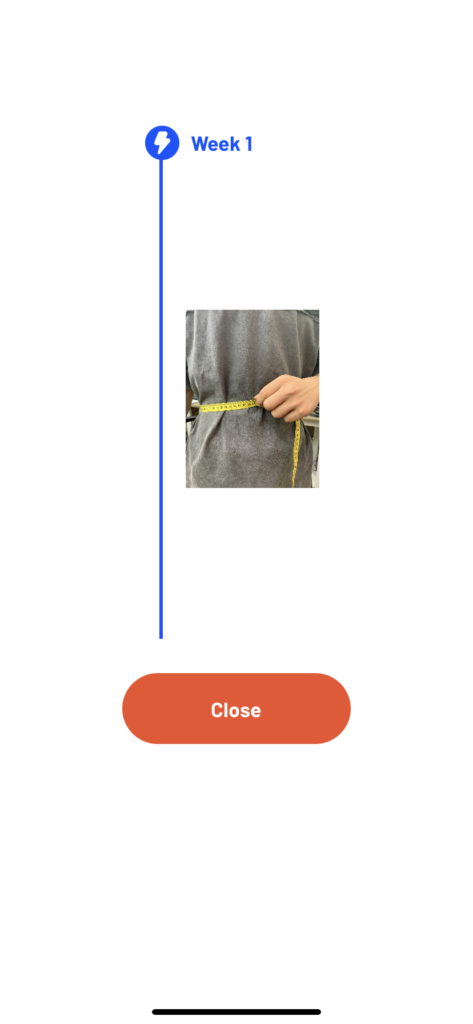
Before starting the training plan, the app allows users to take photos, and every month it will prompt users to retake photos and list them in the training plan for comparison. This helps users see their progress in improving their body shape.
Step 1: View your personalized training plan.
The software will track daily exercises and display the weekly plan, the day of the week, exercises, and completion rate.
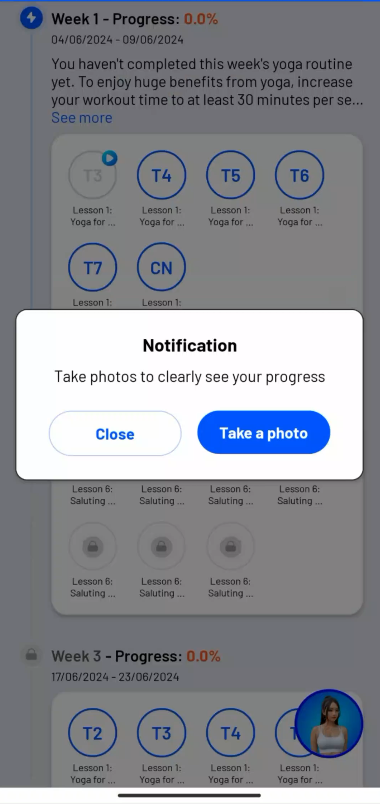
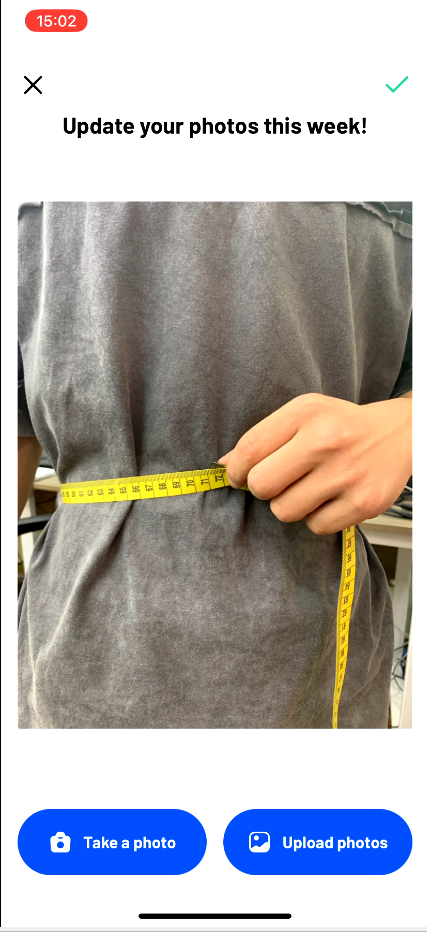
Step 2: Save this week’s photo.
Click the “Take Photo” button to capture this week’s photo.
Option 1: To take a photo with the Camera, click the “Take Photo” button and save it.
Option 2: To upload a pre-taken photo from the gallery, click the “Upload Photo” button.
Click the checkmark to confirm the photo.
Step 3: View user photos for comparison.
Select the weeks you want to compare photos.
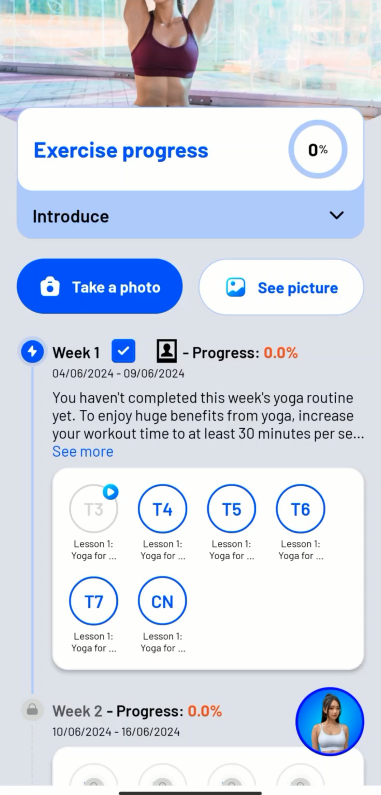
Click the “View Photo” button to see the user’s photos by week.
Share Workout Progress Photos on Social Media
The Share Workout Progress function on the yoga app allows users to instantly share photos of their yoga training progress on social media. This feature integrates easily, provides sharing suggestions, and creates opportunities for connection and encouragement within the yoga community.
Step 1: View your personalized training plan.
The software will track daily exercises and display the weekly plan, the day of the week, exercises, and completion rate.
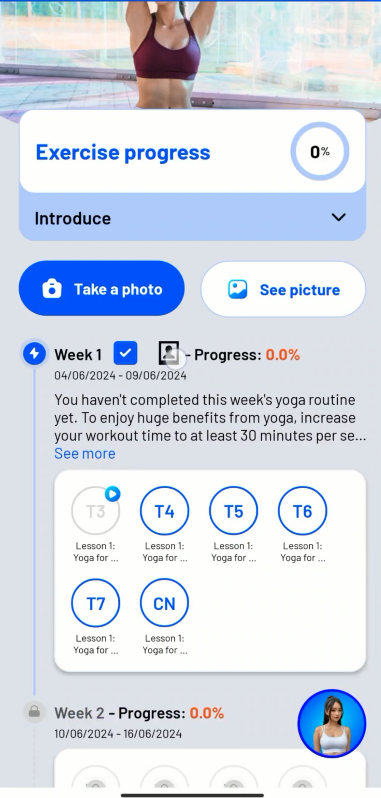
Step 2: View the weekly workout progress photos.
Users can select the image icon for the week they want to view.
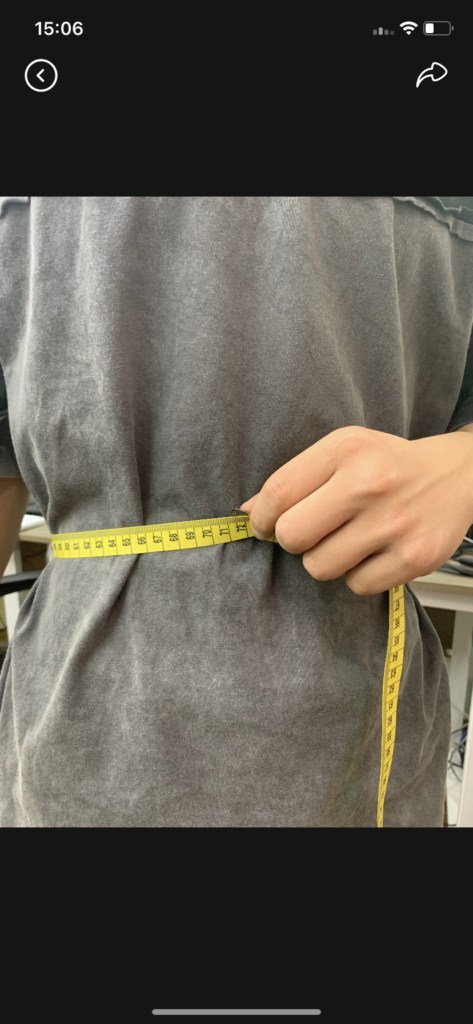
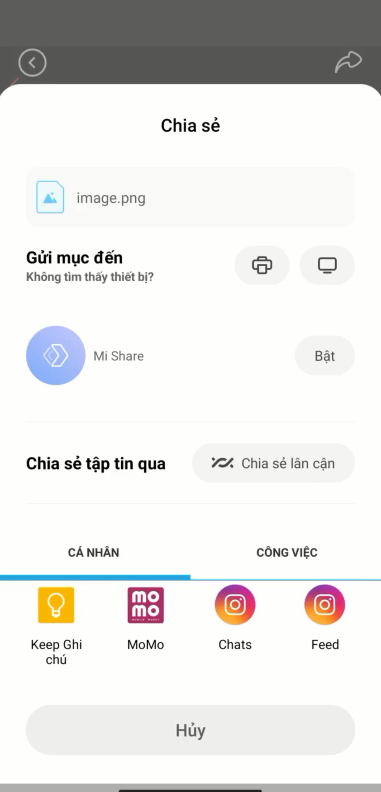
Step 3: Share workout progress photos on social media.
To share on social media, users click the Share icon in the top right corner of the screen. Users then select the social network and share their workout progress with friends and the yoga community.

Good tips for practicing Yoga with Health and Beauty 360 application
How to position your phone to practice Yoga with Health and Beauty 360
Using a phone holder when practicing yoga on a phone app has many benefits.First, the stand helps keep the phone in a fixed and stable position, helping you focus on performing the movements without having to worry about holding the phone. Second, the stand allows you to adjust the angle and position of the phone to the best fit for you, facilitating seeing the screen and making movements accurately.
Steps to use the phone stand to practice yoga on the phone app:
- Prepare the stand and phone.
- Choose a suitable position and adjust the angle of the bracket.
- Test and adjust the position of the stand to ensure comfortable viewing of the screen.
- Open the yoga app on your phone and select an exercise.
- Follow the instructions on the screen and perform yoga movements.
Link to buy phone holder for reference:: https://vn.shp.ee/BBFuUXq
Instructions on how to connect iPhone to TV
Youtube link for instructions:
Use the application on your phone
If you are using Smart TV or Internet TV that supports remote control by phone, it is compatible with the following applications:
– Smart Tivi, Internet Tivi Samsung: Samsung Smart View, Smart Things.
– Smart Tivi TCL: TCL nScreen, T-Cast.
– Smart Tivi, Internet Tivi Panasonic: Panasonic Remote, Panasonic Remote 2.
– Smart Tivi LG: LG TV Plus.
– Smart Tivi, Internet Tivi Sony: Sử dụng tính năng Google Cast (chỉ dùng với Tivi Android) hoặc Photo Share.
How to project your phone screen to TV via wireless connection
Screen Mirroring is a feature that helps iPhone screen display on TV without cables. When making the connection, you need a TV and phone equipped with Screen Mirroring feature and Wifi source.
Step 1: Turn on the TV, then select the Screen Mirroring app available on the TV.
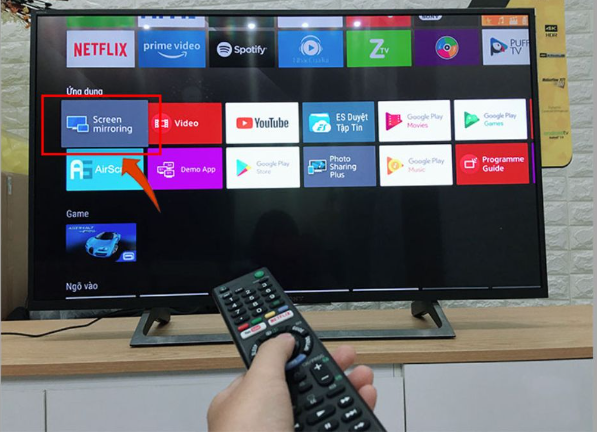
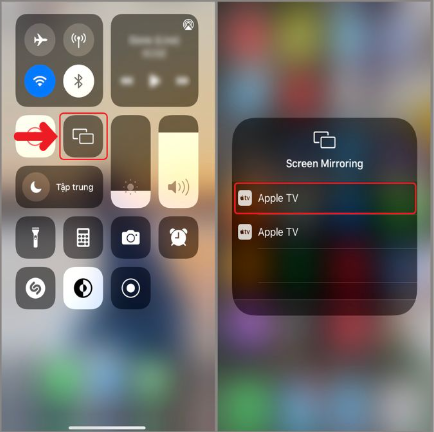
Step 2: On iPhone, turn on Screen Mirroring connection mode. The machine will perform pairing result detection. After successfully connecting, you can enjoy comfortable entertainment.
Use AirPlay (for iPhone 4 and above)
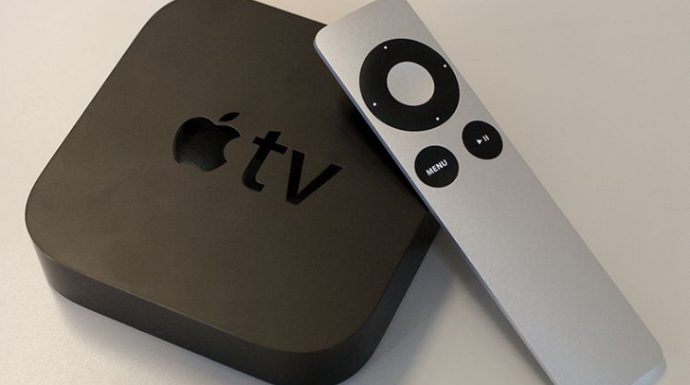
AirPlay is a wireless transmission method developed by Apple, used to connect iPhone, iPad to TV via WiFi without using a cable. To use this feature, you need an additional supporting device, Apple TV.
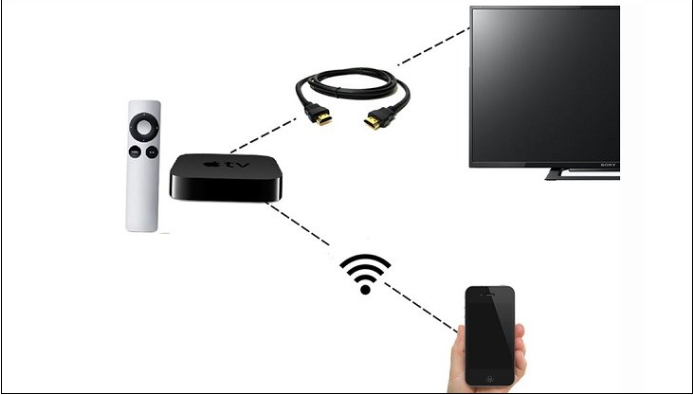
Apple TV is an Apple decoder, connected to the TV via HDMI port.If a regular TV connects to Apple TV, that TV will become a smart TV, able to connect to the network and access applications. You can buy an Apple TV for about 1 million to 5 million, depending on the version and memory.
To connect iPhone to TV via AirPlay, you need the following devices:
- iPhone 4 or later.
- The TV has an HDMI port.
- Apple TV 2nd generation or later.
Doing:
- Connect Apple TV and television using an HDMI cable.
- Turn on the TV and select the HDMI input.
- Power on Apple TV and select language.
- Connect Apple TV and iPhone to the same wifi network.
- On Apple TV, go to Settings > Overview/General > Airplay > On.
- On iPhone, select Screen Mirroring/Airplay.
- Select the TV you want to connect to.
- Enter the password displayed on the TV into the iPhone.
Using HDMI (for iPhone 4 and above)
To do this, you first need an HDMI cable and an Apple Digital AV adapter (for iPhone 4, iPhone 4s) or an Apple Lightning Digital AV Adapter (for iPhone 5, iPhone 5, iPhone 5C, iPhone 6). , iPhone 6s, iPhone 6 Plus, iPhone 6s Plus and newer models).
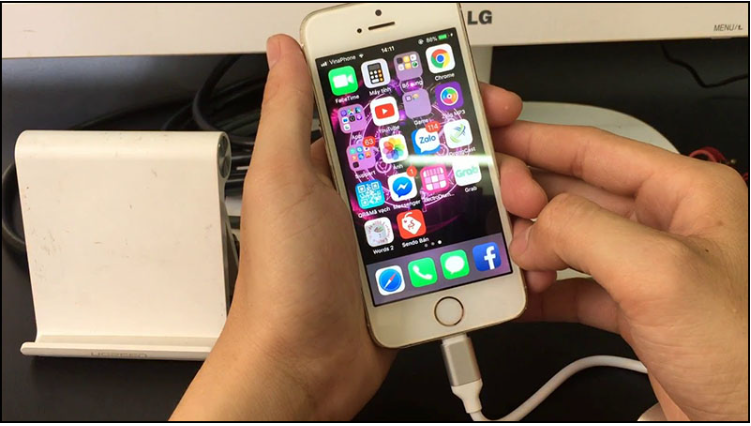
Step 1: Plug the adapter into the iPhone charging port.
Step 2: Plug the other end of the cable into the HDMI port on the TV.
Step 3: Select the input source by pressing the SOURCE or INPUT button, or the arrow icon button on the remote (depending on the TV) > On the TV select HDMI > Things on the phone will be displayed on the TV.
Use Analog connection (can be used for iPhone 3 and above)
Depending on your iPhone and TV connection port, you can choose to buy connection cables such as:
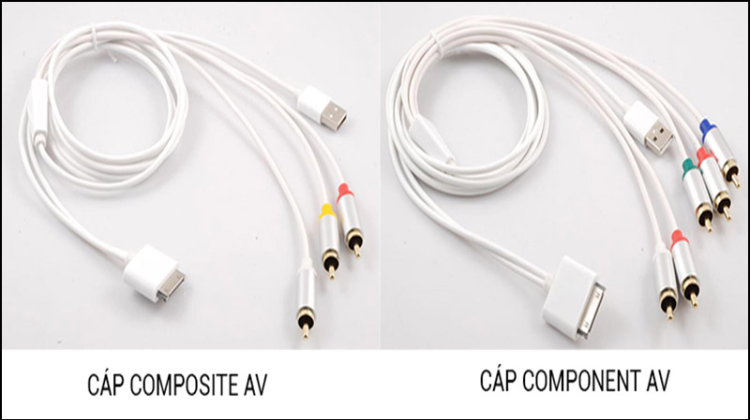
+ For iPhone 3G, iPhone 4, iPhone 4s: Use Apple Composite AV or Apple Component AV cable.
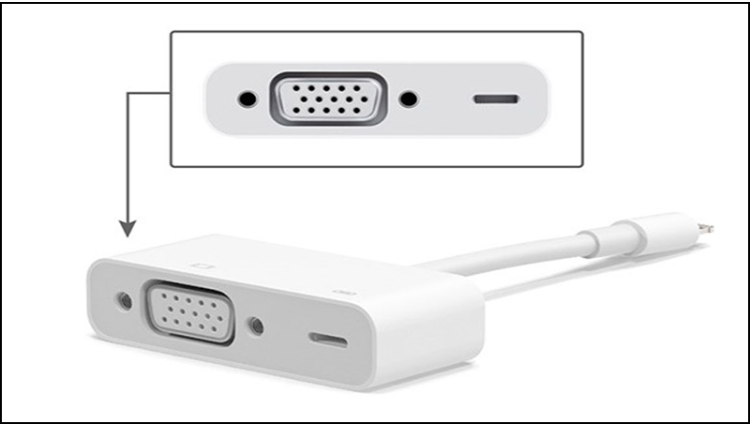
+ For iPhone 5 and later: Use Apple Lightning VGA cable.
Steps:
Step 1: Connect the cable set to the charging port on the iPhone.
Step 2: Connect the cable to the TV.
– For Composite or Component cables: You need to plug in the correct color corresponding to the ports.
– For VGA: Make sure it fits tightly into the port.Instructions on how to connect Android phone to TV
Step 3: Select the input source by pressing the SOURCE or INPUT button, or the arrow icon button on the remote (depending on the TV) > On the TV select HDMI > Things on the phone will be displayed on the TV.
Hướng dẫn cách kết nối điện thoại Android với Tivi
Youtube link for instructions:
Use MHL connection
Step 1: Attach the MHL cable to the phone (small end).
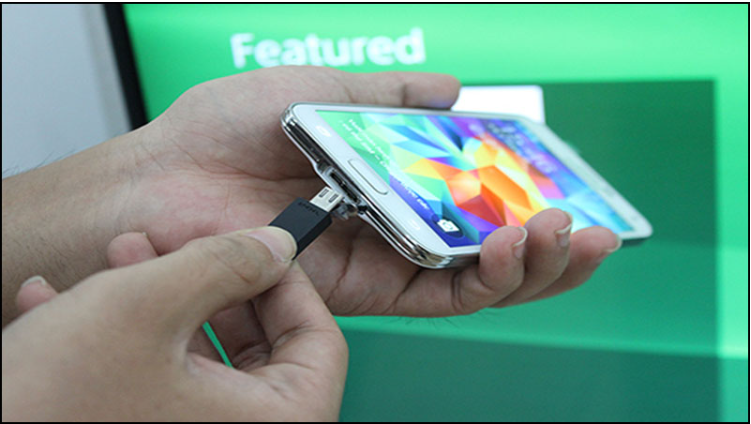
Step 2: Attach the HDMI connector to the TV, connect the USB to the TV.
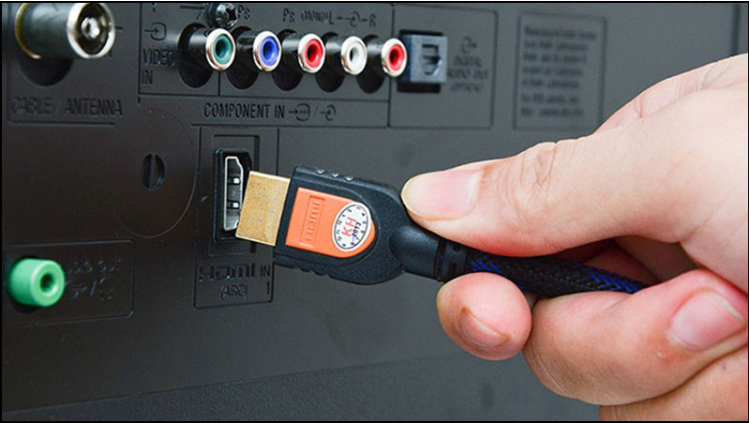
Step 3: Click the power button on the TV remote then select MHL.
Step 4: Now all content has been displayed on TV.
Note: MHL cable best supports HDMI (MHL) port on TV. If your TV has a regular HDMI port, it can still be connected but compatibility is not high.
Each MHL cable cannot connect to all TVs, each brand has a different cable, so you must ask for information before buying!
Use the phone screen projection feature on TV
This feature is mostly available on Smart TVs, Internet TVs can be named Miracast, Mirroring, Screen Share, image mirroring,… Its essence is to project the screen through a common network connection. WIFI.
Step 1: Activate Miracast, Mirroring, Screen Share, Image mirroring,… on TV.
Step 2: Enable this feature on your phone. (On the phone, this feature, if available, will be in the settings, depending on the brand, it is named screen mirroring, image mirroring, projecting my screen, Screen Mirroring….).
Step 3: The phone detects and automatically connects, then all content on the phone will be displayed on the TV.
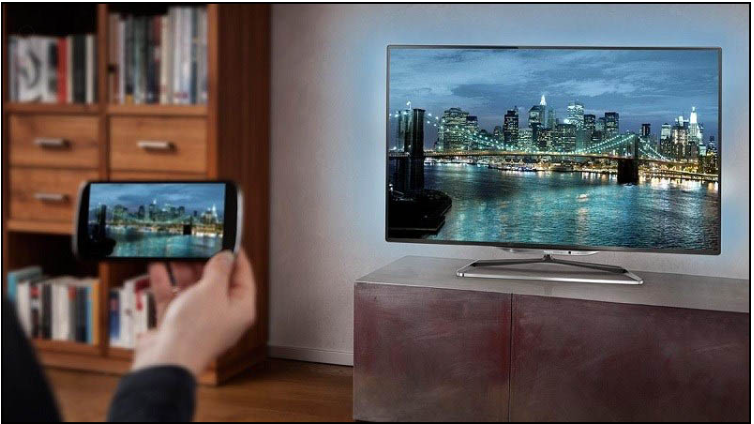
How to project your phone screen to TV via wireless connection
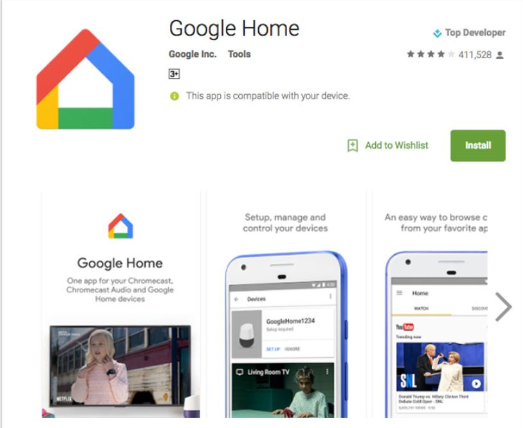
Step 1: Download the Google Home app on Google Play.
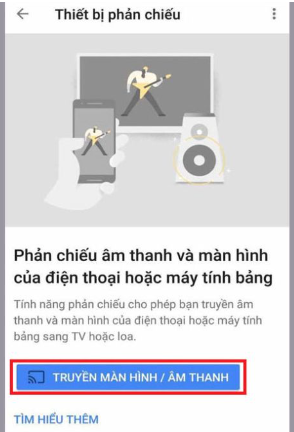
Step 2: After entering the Google Home app, select Mirroring devices in the Account tab.
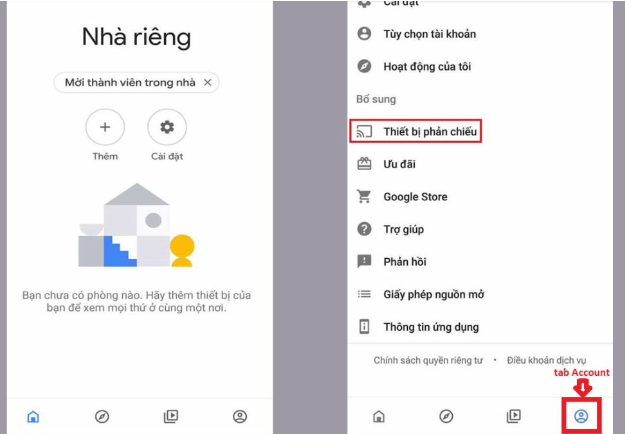
Step 3: Continue to select Transmit screen/audio and your phone will perform detection.
Step 4: Once the device has been connected, you just need to select the TV to play and you’re done.